Getting Started
Creating Your Account
Sign up with your first name, email address and a strong password. You will also be asked to accept our Terms of Service and Privacy Policy, and to confirm that you are 18 or older.
We then send a confirmation link to your email. Click it to verify your address, and you'll be taken straight to your workspace.
Signing In
Sign in with your email and password. For your protection, sign-in is completed with a one-time code that we email to you — enter it on the verification screen to finish logging in. The code is short-lived, and repeated failed attempts are rate limited.
You can turn an extra two-step verification prompt on or off at any time from Settings → Account → Two-Step Verification.
The Browser Extension
Our browser extension for Chrome, Firefox and Edge will set your workspace as your “New Tab” page automatically. It is not published to the browser stores yet — keep an eye on the extension page, where the install links will appear as soon as it is available.
In the meantime you can use Startikka today by bookmarking your workspace, or by setting it as your browser's home and startup page in your browser settings.
The Workspace
The Main View
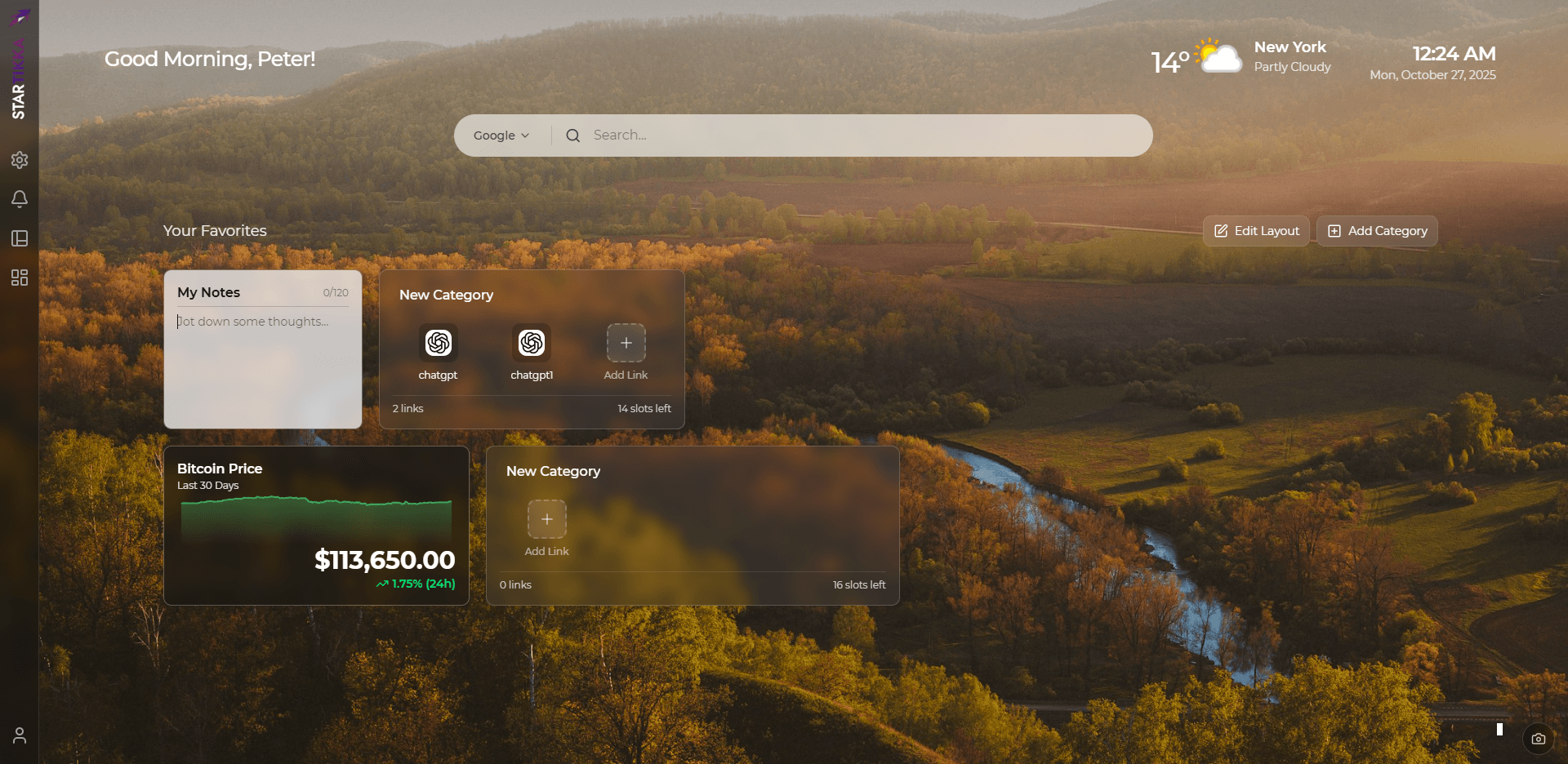
Your workspace is your central hub for organizing links. It's designed with a grid-based layout where you can add, move, and resize different elements. The layout is responsive but is best optimized for desktop or laptop browsers. Each workspace has a sidebar on the left with icons for settings and your user profile.
Every workspace — on both plans — comes with a clock and weather display, a personal greeting, a search bar and a daily quote. These are always on, and are not part of your widget allowance.
Device-Specific Layouts (Pro Feature)
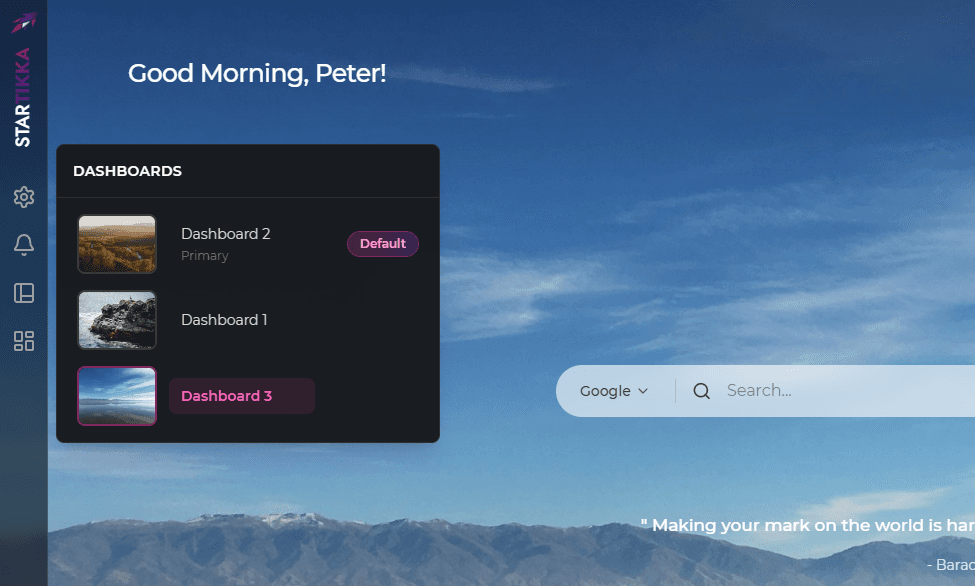
Pro users can create up to 3 workspaces, and each browser can remember a different one as its default. Pin a full layout on your desktop and a more compact one on your laptop or phone, and each will load its own.
This preference is stored in a cookie in the browser you set it from, so it is really per browser rather than per device: open Startikka in a different browser on the same machine, or clear your cookies, and that browser falls back to your primary workspace.
Changing Your Background (Pro Feature)
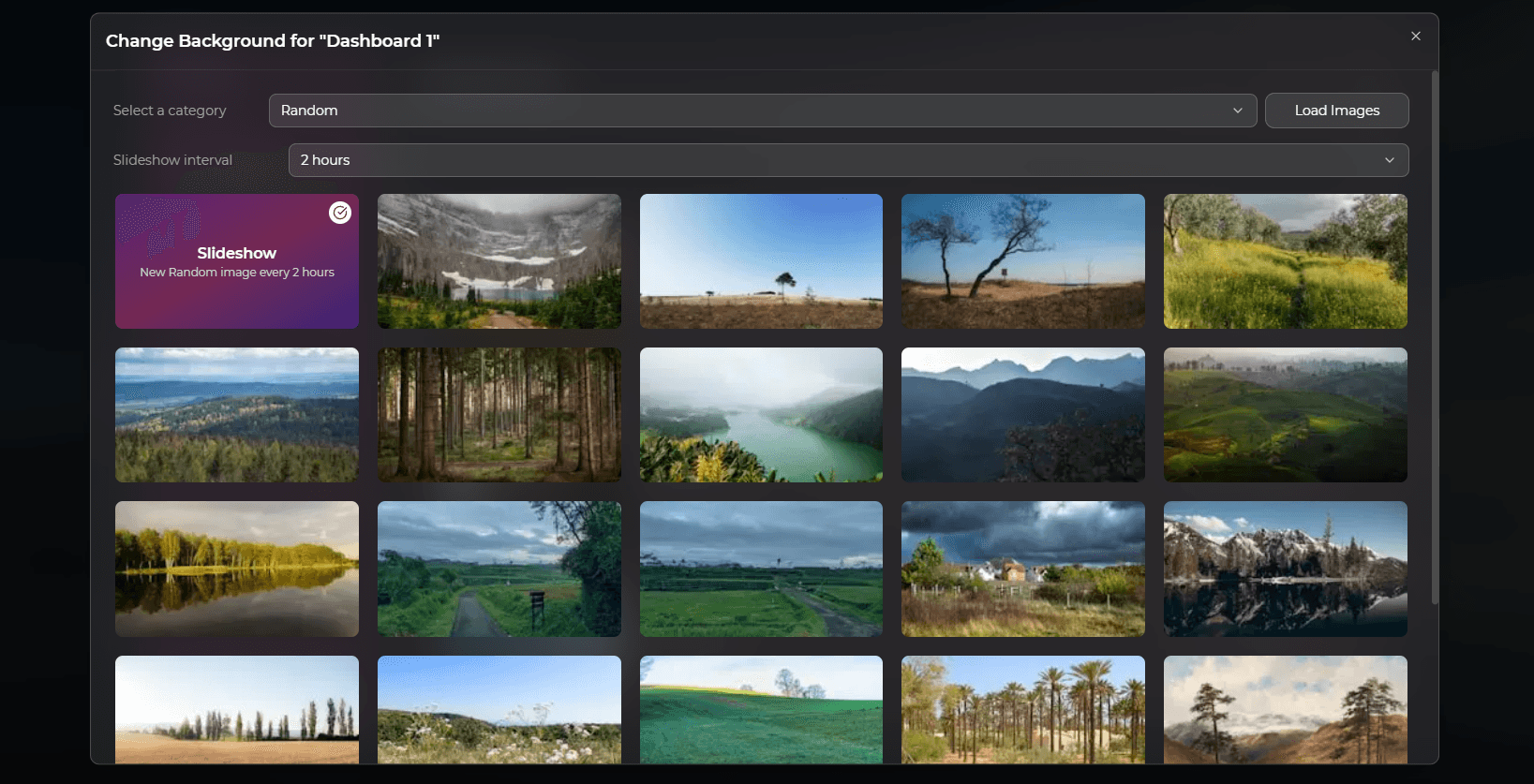
New accounts start with a slideshow that pulls a fresh random photograph from Unsplash every couple of hours. Free accounts keep that default; changing it is a Pro feature.
As a Pro user you can give each workspace either a single fixed image or a slideshow on a topic of your choice, and set how often the slideshow changes — every hour, 2, 4, 12 or 24 hours. We display the photographer's credit and a link to Unsplash for all images.
Links & Categories
Creating Categories
Categories, or “CatCards,” are how you organize your links. Click the “Add Category” button to create a new card on your workspace. Free users can have up to 4 categories on their single workspace, while Pro users can have up to 12 categories per workspace.
Adding & Managing Links
Inside each category, click the “+” button to add a new link. Simply provide a name and a URL. Startikka will automatically fetch the website's icon for you. Right-click any link to open a context menu to edit, remove, or copy and paste it into another category.
Each category card holds up to 10 links on the Free plan and up to 16 on Pro. These caps are applied on our servers, so a full card will refuse the extra link rather than silently dropping it.
Editing Your Layout
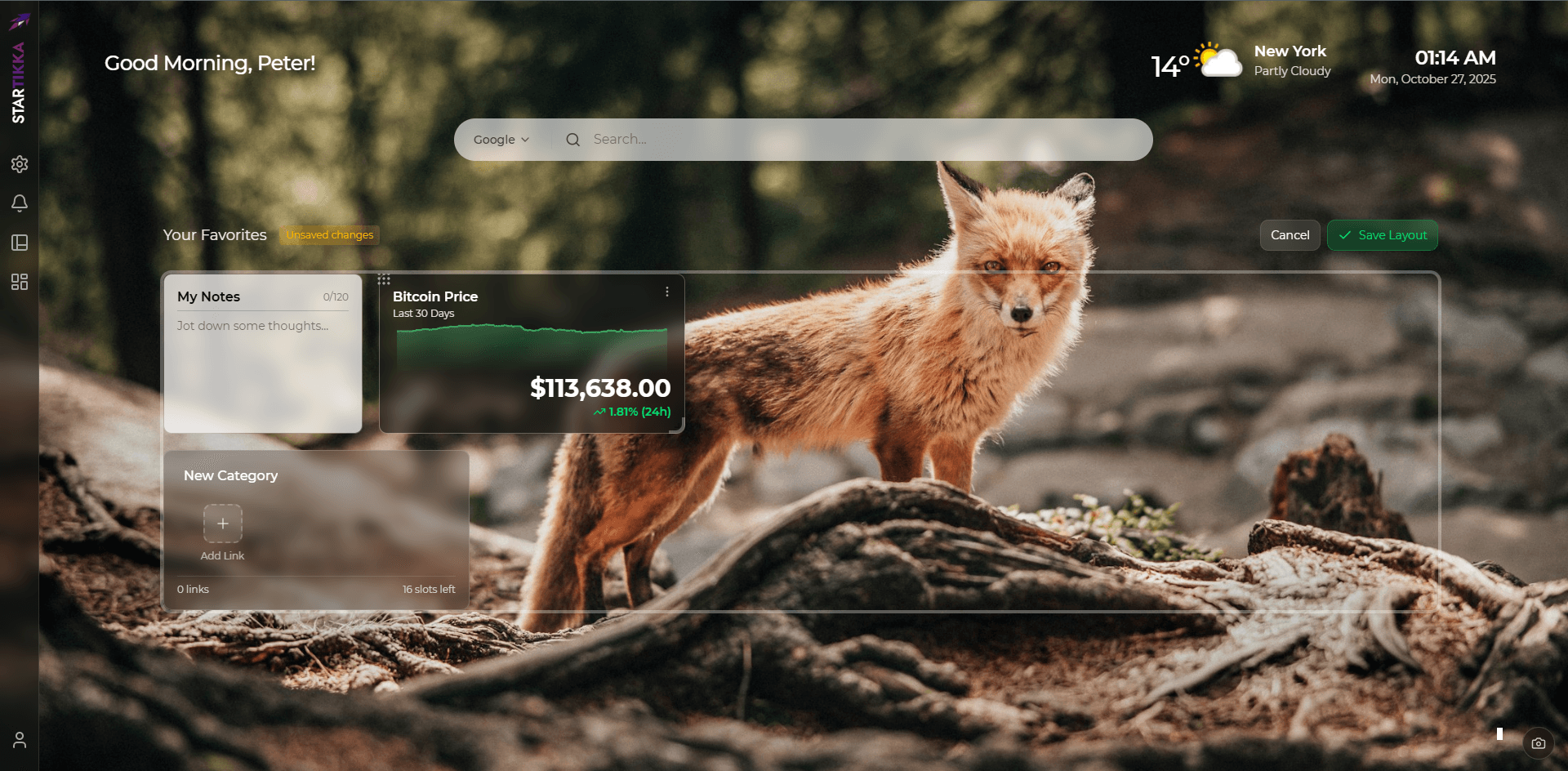
You can enter “Edit Layout” mode to fully customize your workspace. In this mode, you can resize and move both your category cards and widgets to create a personalized grid layout.
Widgets (Pro Feature)
What Every Workspace Includes
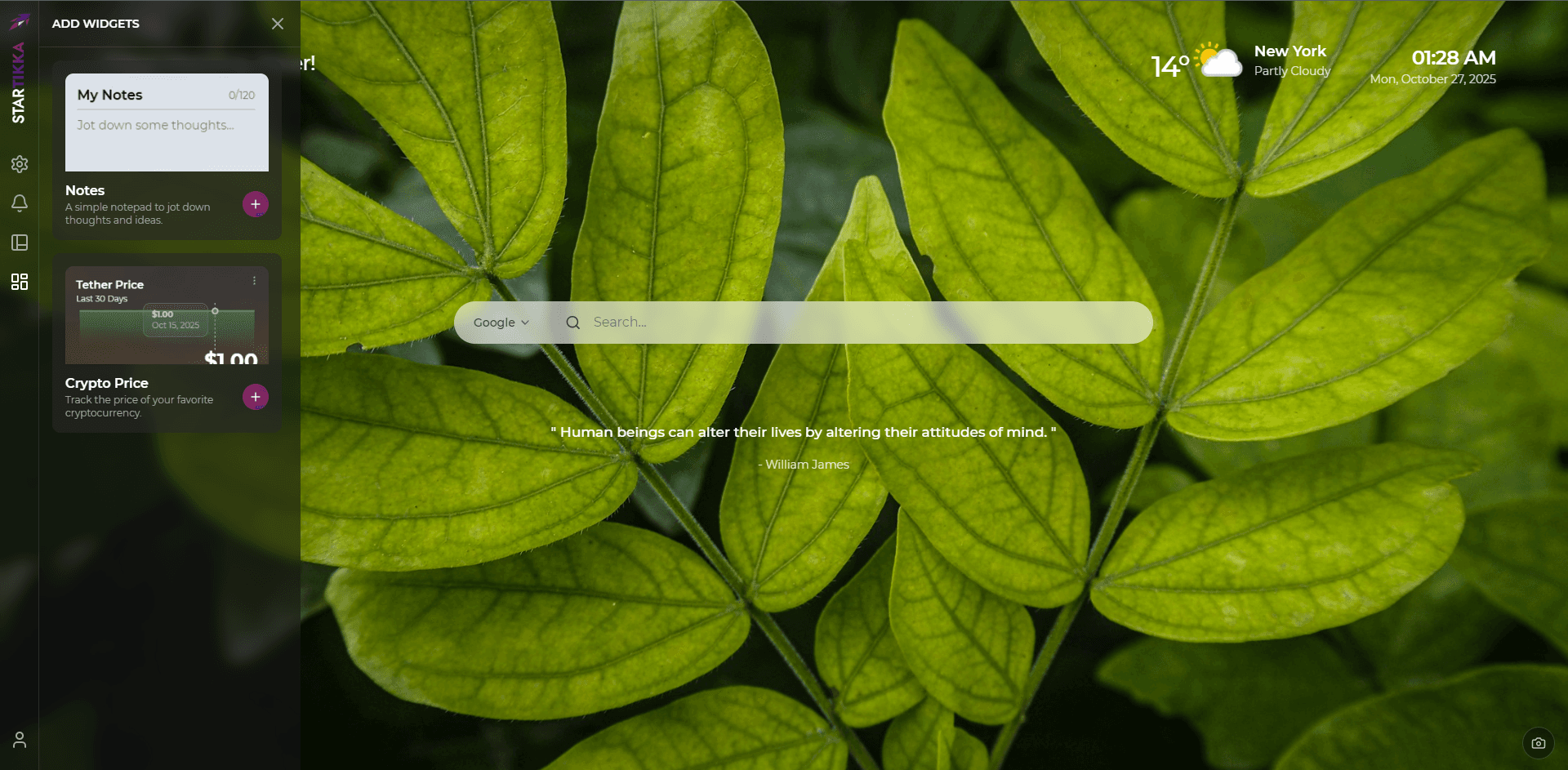
The clock and weather display, your greeting, the search bar and the daily quote are part of every workspace on both plans. Widgets are the extras you place on the grid yourself, and they are a Pro feature: Pro users open the “Widget Drawer” from the sidebar and drop any of them onto the workspace.
Available Widgets
There are currently 15 widgets to choose from:
- Notes: A simple notepad to jot down thoughts and ideas.
- Network Speed: Monitor your connection latency in real-time.
- Eye Break: Take regular breaks to rest your eyes.
- Water Tracker: Track your daily water intake and stay hydrated.
- Breathing Box: Visual guide for 4-7-8 deep breathing exercises.
- Unit Converter: Quickly convert Temperature, Weight, and Length.
- Calculator: Perform basic and scientific arithmetic.
- Meeting Cost: Track the real-time cost of your meetings.
- Month View: A simple calendar to check dates.
- Countdown: Track time remaining to a specific event.
- World Clock: Track time across multiple time zones.
- Pomodoro Timer: Boost productivity with timed focus intervals.
- Kanban Board: Track tasks with a simple To Do / Doing / Done board.
- To-Do List: A simple checklist for your daily tasks.
- Flashcards: Study concepts with flip cards.
Each widget can be resized within its own limits, and most carry their own settings — open a widget's dot menu to configure it.
Search Functionality
The built-in search bar allows you to search using your preferred search engine. You can change the default search provider from “Google,” “DuckDuckGo,” “Bing,” or “Brave” at any time. Your selection is saved locally in your browser.
Weather Widget
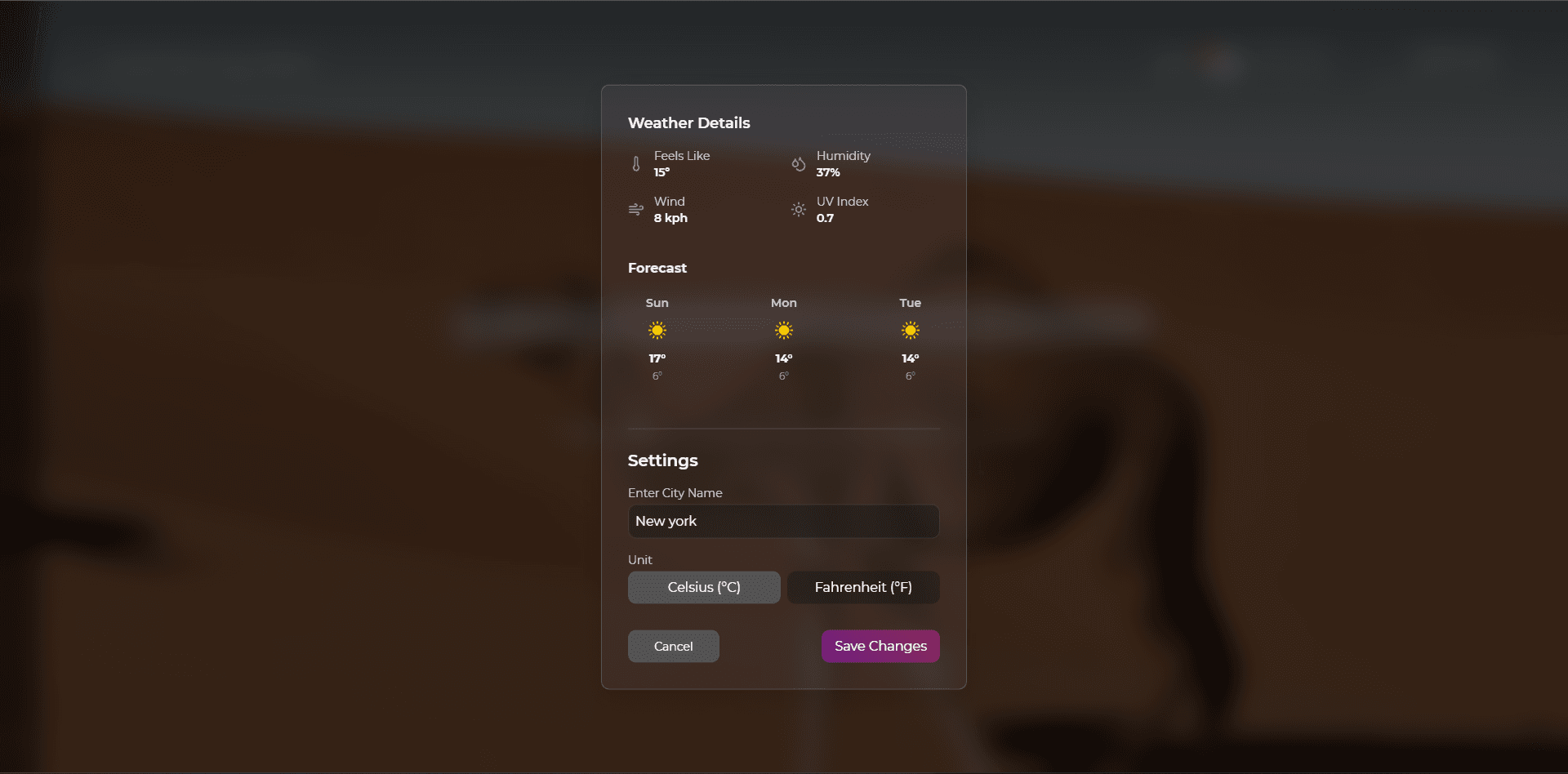
The weather display shows the current weather for your specified location. You can configure your city, region, and country, as well as the temperature unit, via its settings. This information is saved locally in your browser and is not collected by us.
Settings
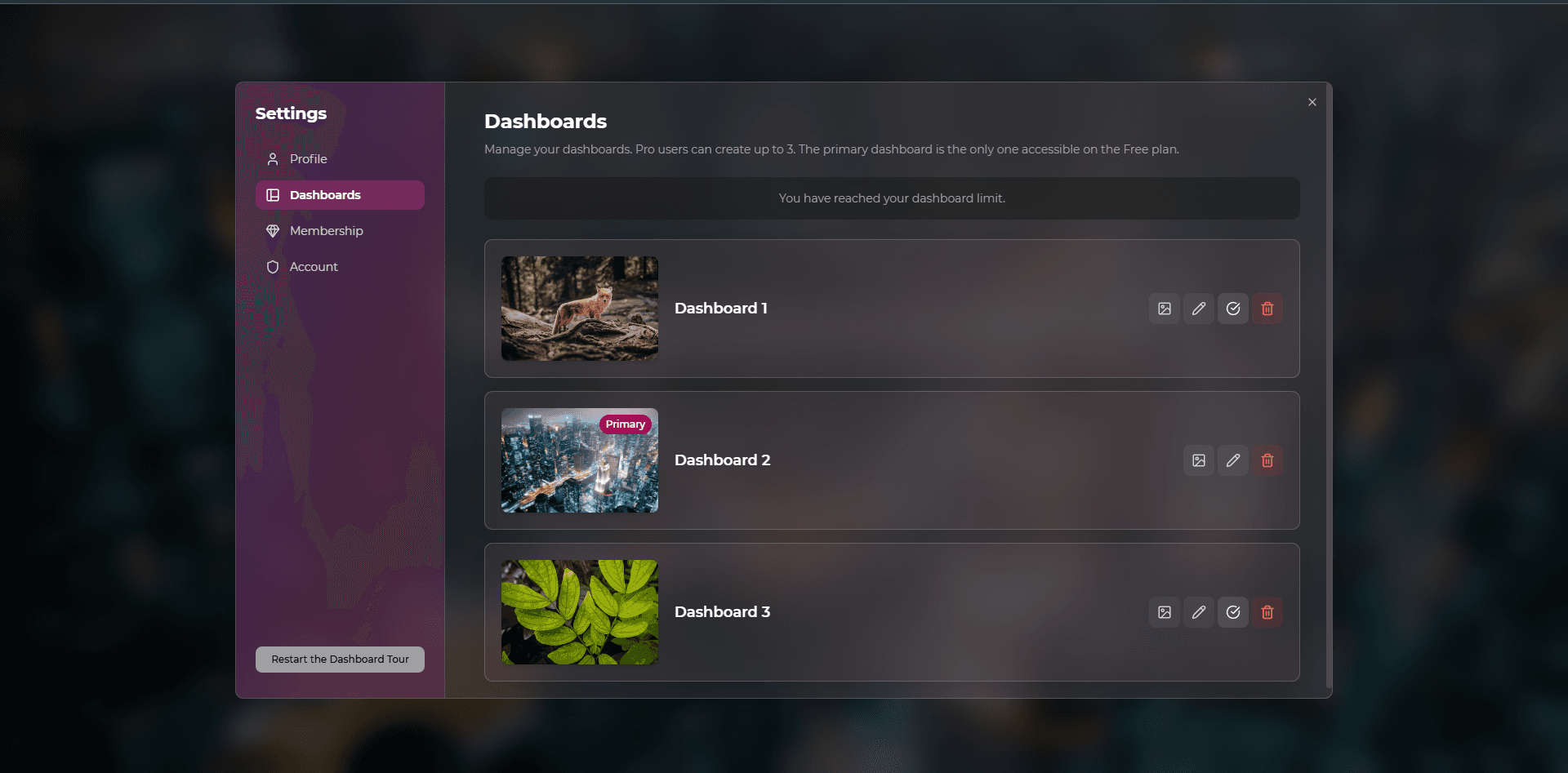
The settings modal is your control center, accessible via the gear icon in the sidebar. It has four tabs:
- Profile: Change your first name, change your email address, and sign out of every device at once with “Logout Everywhere.”
- Workspaces (Pro Feature): Create, rename, or delete your workspaces. You can also select a primary workspace and manage backgrounds here. Free users cannot create, edit or delete workspaces.
- Subscription: Upgrade to Pro with monthly or yearly billing, or view your membership details.
- Account: Change your password, turn Two-Step Verification on or off, download your data, or permanently delete your account and everything in it.
Two-Step Verification
From the Account tab you can require a second step when signing in, so a stolen password on its own is not enough to reach your workspace. You can turn it off again from the same place.
Downloading Your Data
Also on the Account tab, “Download my data” produces a machine-readable JSON file containing everything we hold about you — your workspaces, categories, links, widgets and account details. There is no request form and no waiting period: the file is prepared on the spot.
The Pro Subscription
Upgrading to Startikka Pro ($4.49 per month, or $19.99 per year) unlocks:
- Multiple workspaces (up to 3): Create separate workspaces for different contexts, like “Work” and “Personal.”
- More categories (up to 12 per workspace): Up from 4 on the Free plan.
- More links per category (16 instead of 10): Room for the long tail of sites you actually visit.
- All 15 widgets: The full widget drawer, from the Pomodoro timer and Kanban board to the calculator and world clock.
- Custom backgrounds: A fixed image or a themed slideshow per workspace, refreshing at an interval you choose.
- Per-browser default workspace: Each browser opens the workspace you pinned there.
If Your Subscription Ends
Nothing is deleted when a subscription lapses. Your workspace simply returns to what the Free plan allows: widgets stop being displayed, extra workspaces become read-only, and background customization is switched off. Everything reappears exactly as you left it if you resubscribe.
Privacy & Security
Privacy is the core of Startikka. We do not track your activity, analyze your links, or sell your data. Your workspace content, including your links and notes, is for your eyes only. All your data is protected by PocketBase's robust security measures.
You can export everything we hold about you, or delete your account and all associated data, yourself from Settings → Account — no email to support required. Full details are in our Privacy Policy.